![Frame-1.png]](https://help.nouxdigital.com/hs-fs/hubfs/Frame-1.png?height=17&name=Frame-1.png)
Notetaker’s calendar integration ensures your meeting notes are captured automatically and attached to the right meetings. By connecting your calendar, you enable seamless recording, transcription, and follow-up insights.
Here’s how to set it up in just a few steps.
You will learn!
-
How to connect Notetaker to your calendar
-
How automatic meeting joining works
-
How to manually select meetings for recording
-
How to manage upcoming meetings
Setting Up Notetaker Calendar Integration
To connect Notetaker to your calendar, go to Notetaker from the left-hand sidebar in Noux.
Open the Calendars tab inside the Notetaker view.
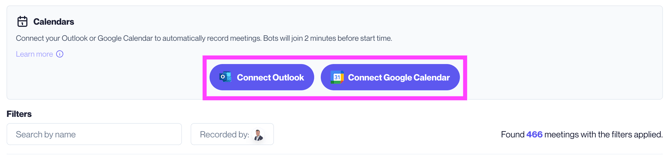
Connecting Your Calendar
You can connect either:
-
Microsoft Outlook
-
Google Calendar
Click Connect Outlook (for example). You will be prompted to log in to your Microsoft environment.
With just a few clicks, the integration is complete.
What Happens After Connecting?
Once connected:
-
The Notetaker bot joins your video meetings 2 minutes before the scheduled start time
-
You will see your upcoming meetings for the next 14 days inside Notetaker
If you are the meeting organizer (host) and the meeting is, for example, a Teams call, Notetaker will join automatically.
If the meeting is organized by someone else, automatic joining is not enabled by default.
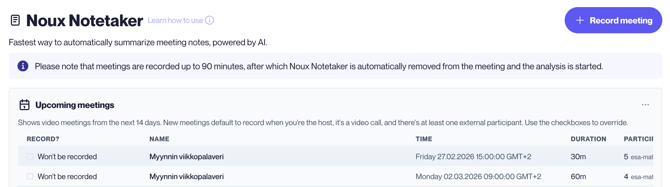
Managing Upcoming Meetings
In the Upcoming Meetings section, you can:
-
Review your daily meetings
-
Select meetings in advance for recording
-
Enable Notetaker for meetings organized by others
Pro Tip: Start your day by reviewing upcoming meetings and selecting the ones you want Notetaker to attend.