![Frame-1.png]](https://help.nouxdigital.com/hs-fs/hubfs/Frame-1.png?height=17&name=Frame-1.png)
Playbooks are part of the Notetaker feature set. They allow you to define structured questions and parameters that Notetaker monitors during meetings. This ensures key topics are discussed and important questions are asked.
Here’s how to create and use Playbooks.
You will learn!
-
What Playbooks are
-
How to create a Playbook
-
How to use Playbooks in meetings
-
How to analyze Playbook results
What Is a Playbook?
A Playbook is a structured set of predefined questions or parameters that Notetaker monitors during Teams or Google Meet meetings.
With Playbooks, you can ensure:
-
The right questions are asked
-
Key topics are covered
-
Important themes are revisited
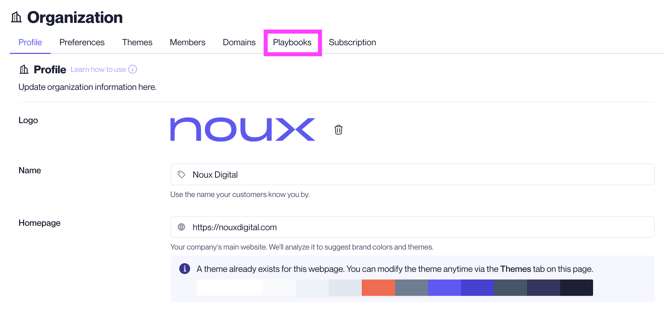
Navigating to the Playbooks Section
Go to Organization from the left-hand menu in Noux.
Open the Playbooks tab.
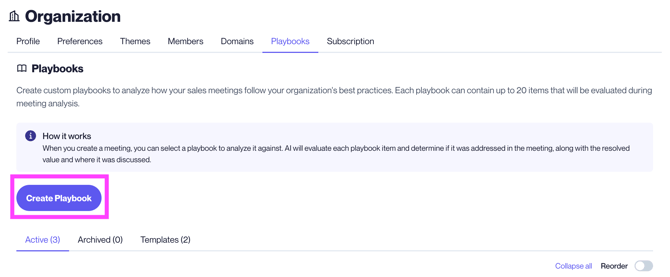
Creating a Playbook
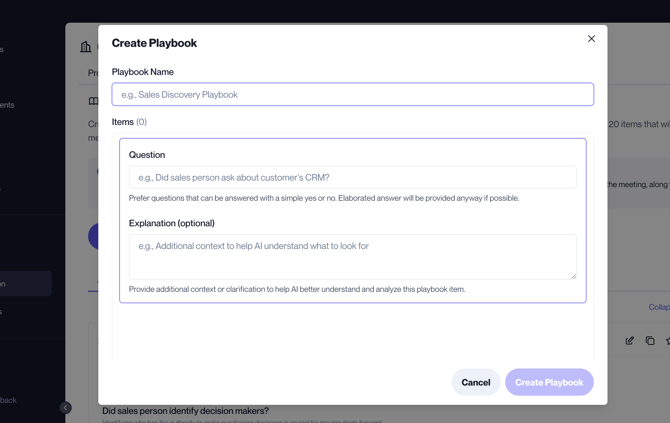
Click Create Playbook.
You can:
-
Give the Playbook a name
-
Define 1–20 questions
-
Customize it for specific meeting types
Examples of Playbooks:
-
First meeting Playbook
-
Proposal presentation Playbook
-
Discovery meeting Playbook
Each Playbook can be tailored to match a specific meeting scenario.
Using a Playbook in a Meeting
When Notetaker starts recording a meeting, you can:
-
Select which Playbook the meeting should follow
You can also change the Playbook afterward and re-run the analysis on the conversation.
Reviewing Playbook Analysis
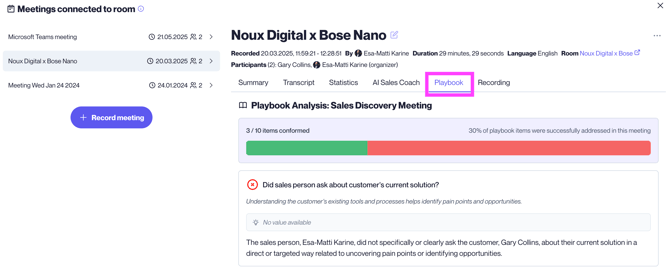
After the meeting analysis is completed, a new Playbook section appears in the conversation view.
There you can see:
-
The predefined questions
-
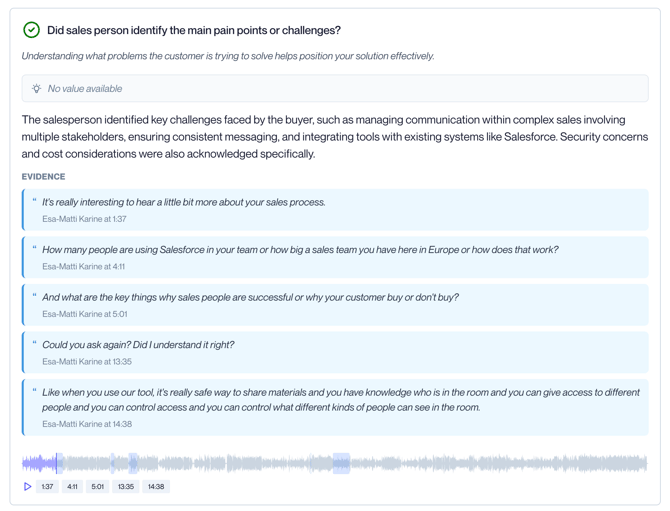
Whether each parameter was fulfilled
-
Direct quotes from the meeting
-
The option to listen to specific audio clips
This ensures structured, high-quality meetings and better follow-up across Teams and Google Meet calls.